lowrie|Web
Home of lowrie | Digital Limited
What inspires you?

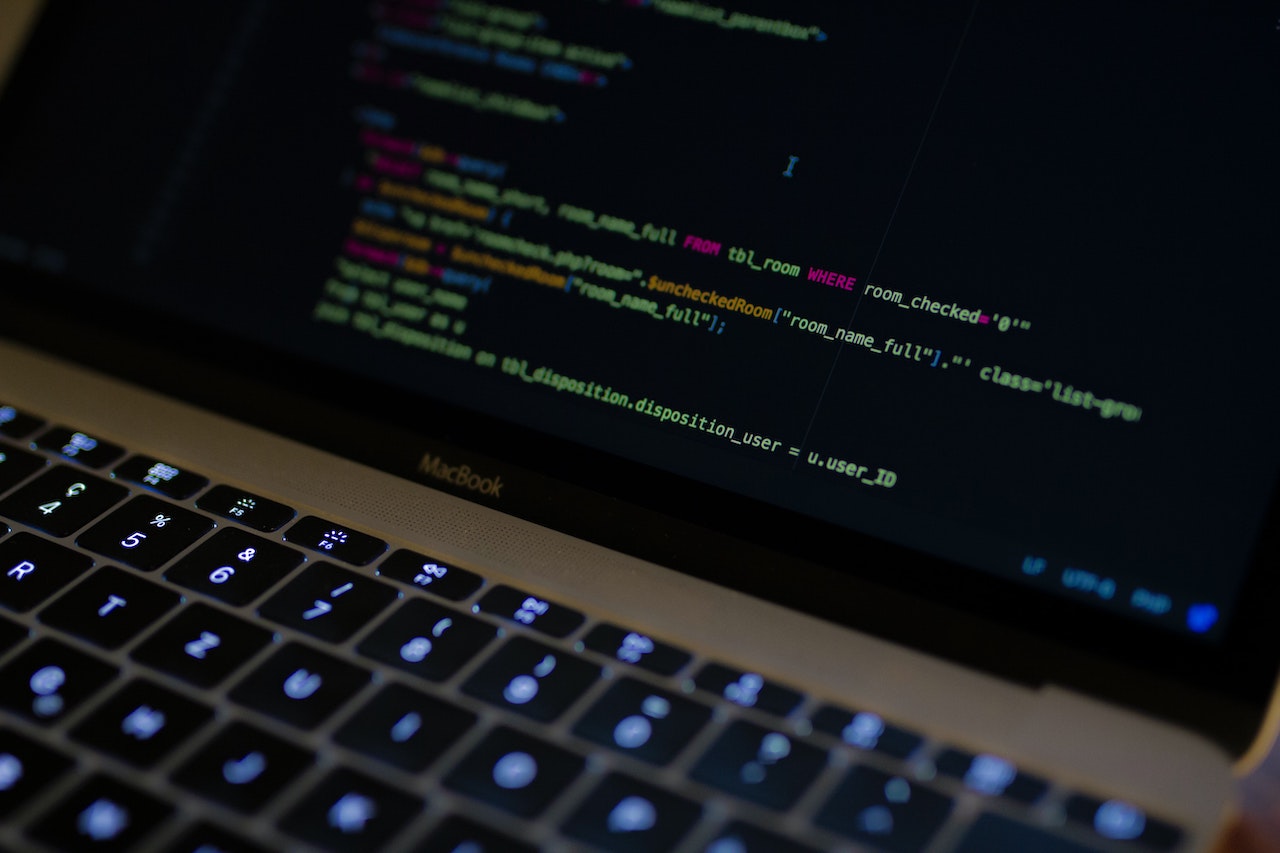
I started serious development (I got paid real money) in Z80 assembly. I moved onto C and fell in love with high-level coding.
Enter C++, an Object-Oriented Programming Language, with features like classes, templates, inheritance, dynamic memory allocation. It was wild and so were the frameworks (remember Microsoft MFC). C++ is not at all like Marmite - with Marmite you either love it or hate it. C++, you both love and hate it on a daily basis. But I did love it - I even developed some training courses for The Learning Tree and QA Training in the early 90s.
Enter C# and my fun meter really started to peak. If you love code, you have to love C#. It addressed a whole bunch of problems found in C++ and left in all the goodies. This is my principle language now, although a lot of time is spend swimming in JavaScript and one or more frameworks.
Over the years, I’ve had some brief affairs with other languages like Forth, Lisp, even Visual Basic, but my heart forever belongs to C#.
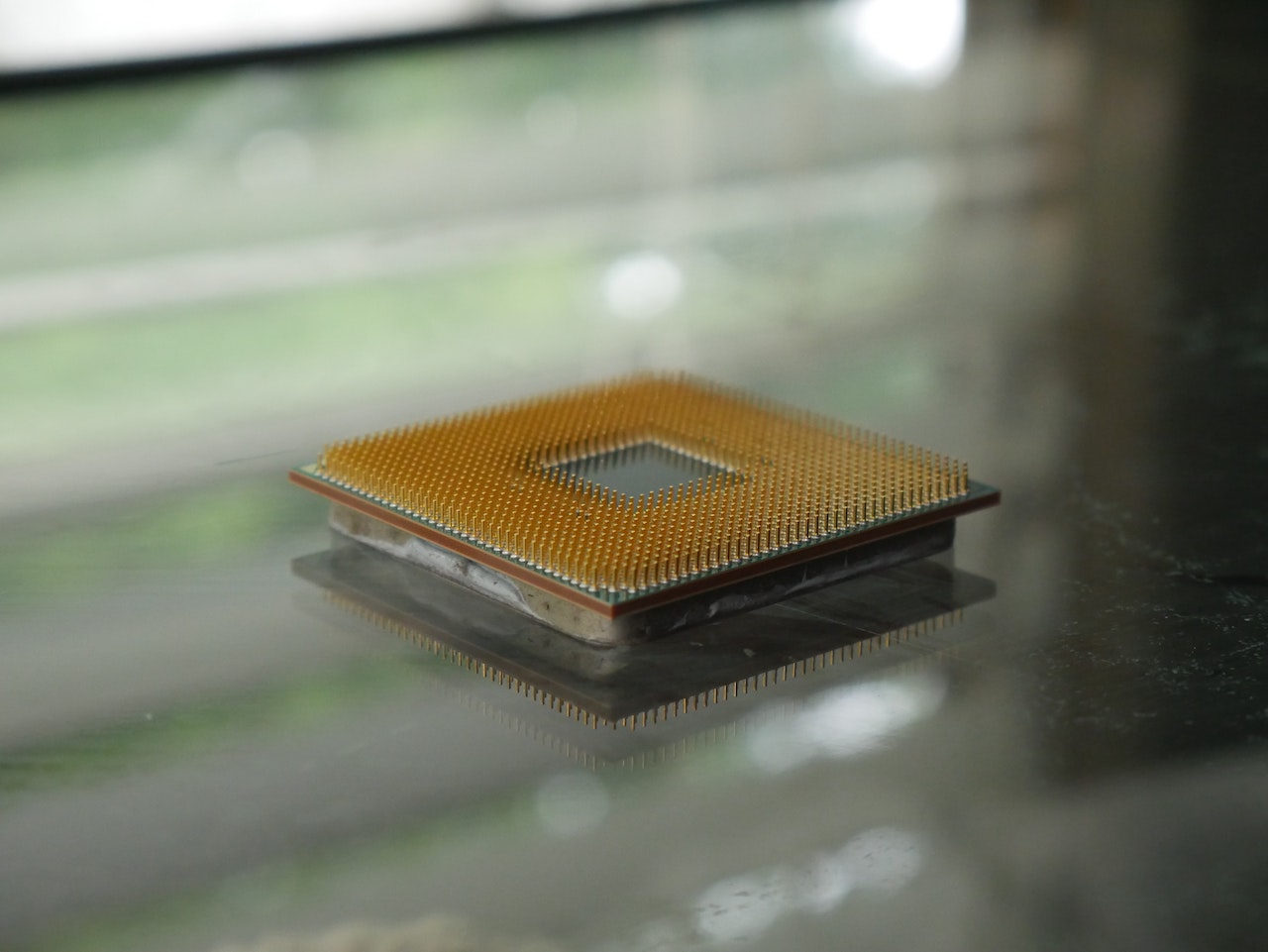
Coming around full circle, I’ve recently been playing in the 8-bit arena again with a W65C02 processor and 6502 assembly (respect to Ben Eater for his inspiring angle on the microprocessor).
At the start of the ‘90s, Windows 3.1 was all the rage. I was fortunate enough to develop in Windows at that time and was offered the opportunity to work with QA Training on a number of courses - one of those was Windows Development. At the same time Matt Pietrek wrote the book Windows internals : the implementation of the Windows operating environment - a must read.
One of the subjects that fascinated me was how the Windows Messaging System worked (chapter 7), how messages were created on the application message queue, how the window processed these messages in your WindowProc() and how unhandled messages were delegated back to Windows by calling DefWindowProc() at the end of your window procedure. And all this worked with a message queue only 8 elements deep. How it all works was something I had a lot of time for and was able to share with others in my training sessions.
You think that’s clever, have a look at the Forth inner interpreter:
“What?” I hear you ask? Crazy talk right! Well if you take a look at the excellent book Threaded Interpretive Languages Their Design And Implementation by R. G. Loeliger it all starts to make sense. What is just stunning about this is - it works!
Ok, less esoteric, how about Async JavaScript. I use things like timers and AJAX in JavaScript all the time, but didn’t really understand how it worked. Finally, I stumbled across an excellent webinar by Steve Kinney - take a look at Actually Understanding Asynchronous JavaScript on YouTube
So there you go, JavaScript has an Event Queue and Call Stack - never knew that. But now I do and my asynchronous JavaScript is a lot more healthy.

Innovation in technology is to the explosion of diverse forms in evolution following a mass extinction event. In technology, the extinction event is often commerce but equally the emergence of trends like social media. In the technology vacuum there is an explosion of new technologies and solutions, hopeful monsters. And from time to time I’ve been involved in these events.
One example that comes to mind is Network DDE. I was fortunate to be at Midland Bank in 1989 where we independently developed NetDDE as a general integration technology between Window 3.0/3.1 documents in Word and Excel.
Why is NetDDE important? NetDDE moved the focus away from network protocols like TCP/IP and NetBIOS towards software automation and integration. This ultimately opened the door to architectural styles like REST and web services.

Lowrie Digital Limited is a supplier of cloud services and solutions, specialising in solutions architecture, cloud architecture, technical architecture, design and implementation.
With over 30 years experience in Microsoft technologies and platforms, we specialise in solutions architecture around the Azure cloud platform, from brown field project, migrations and re-platforming to green field project addressing SaaS, PaaS, IaaS and DaaS.